GUIDE
How to show seconds on the Windows 11 taskbar clock
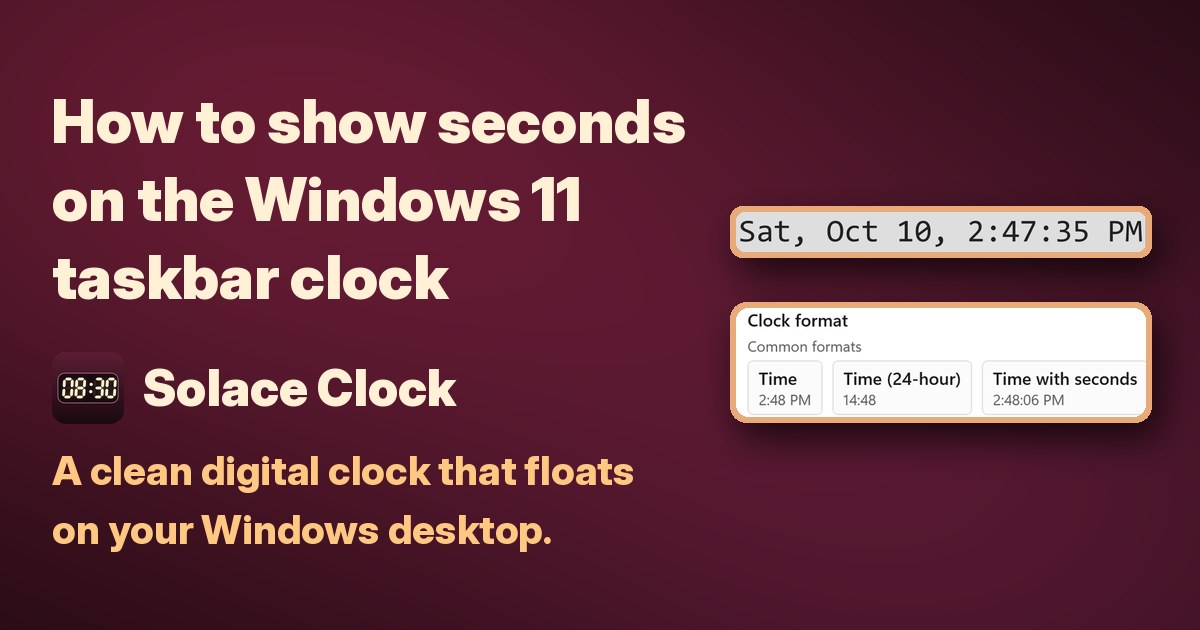
The clock at the right end of the Windows 11 taskbar shows hours and minutes, but not seconds. Seconds are one built-in setting away, and it's free. Depending on your version of Windows 11, the setting is in one of two places. Here's how, built-in Windows steps first.
1. Turn on seconds in Date & time
- Select Start > Settings > Time & language > Date & time.
- Make sure Show time and date in the System tray is turned On.
- Select Show seconds in system tray clock (uses more power).
The taskbar clock now shows seconds. To turn them off again, clear the same option.
2. Or use Taskbar behaviors
If you don't see the option under Date & time, look in the taskbar settings instead.
- Right-click an empty spot on the taskbar and select Taskbar settings, or go to Settings > Personalization > Taskbar.
- Open Taskbar behaviors.
- Select Show seconds in system tray clock.
This option came to Windows 11 version 22H2 in the May 24, 2023 Windows configuration update. If you see it in neither place, check Settings > Windows Update for updates first.
3. Know the trade-off
Windows itself labels the option "uses more power", so on a laptop you may want it on only when you need it.
Want the time bigger, or somewhere else on screen?
The taskbar clock stays small and fixed in its corner, and full-screen apps hide it. If you want the time and date larger, on another part of the screen, or on a big or second monitor, a desktop clock can help.
Disclosure: we (SolaceSoftware) make and sell Solace Clock.
That's what our Solace Clock is for. To be clear: Solace Clock doesn't change or replace the taskbar clock. It's a separate clock that floats on your desktop. Use the built-in setting above for seconds on the taskbar.
- A borderless clock you drag anywhere on the desktop, sized and styled the way you like.
- Seconds if you want them: pick a preset format such as time with seconds, or build your own with a live preview.
- A countdown mode and any time zone. Add a second clock for another zone next to your local one.
- Themes, colors, fonts and size, with an optional always-on-top setting and a tray icon that brings it back when it's hidden.
- Nothing to install: unzip and run. No admin rights, no account and no network connections.
Limits: it's a desktop clock, not a taskbar change, so the taskbar clock stays as Windows sets it. You need Windows 10 or Windows 11 with .NET Framework 4.8.1, which is built into current Windows 11. The download is about 1.3 MB, and the shop page lists the size and SHA-256 of the exact ZIP you download. Keep the app's two files together in the same folder, and turn off Start with Windows in its Settings before you delete the app folder. The app isn't code-signed yet, so on first launch Windows may show "Windows protected your PC". Click More info, then Run anyway.
$18.39 once. No subscription and no automatic renewal.
See our Solace Clock: $18.39 once
Questions before you buy: solacesoftware@smilingface.cloud
Quick answer
- Free and built in: Settings > Time & language > Date & time, then select Show seconds in system tray clock.
- Not there? Settings > Personalization > Taskbar > Taskbar behaviors, same option.
- Keep in mind: Windows notes that seconds use more power.
- For a bigger clock you can drag anywhere on the desktop (it doesn't change the taskbar clock): our Solace Clock, $18.39 once.
Not sure which app you need? Answer one question
Questions: solacesoftware@smilingface.cloud.