GUIDE
Windows 11 cursor too small? How to make the mouse pointer bigger
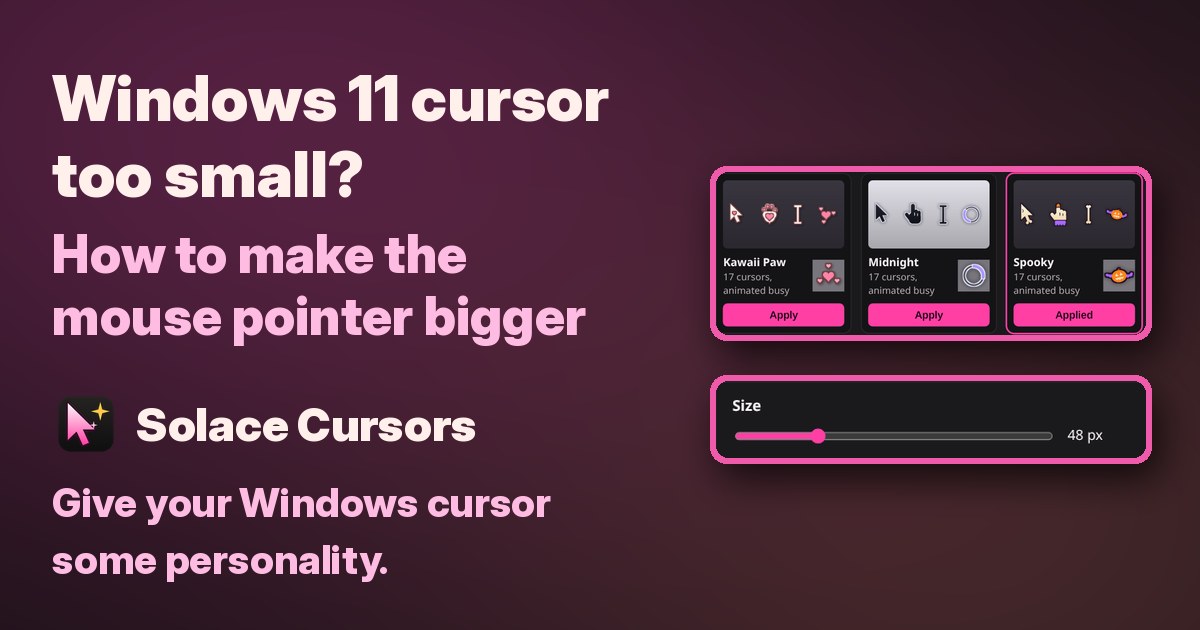
If the mouse pointer is hard to see on a big or high-resolution screen, you don't need to install anything. Windows 11 has a built-in Size slider, and a few more settings make the pointer easier to spot. Here's how, built-in Windows steps first.
1. Make the pointer bigger with the Size slider
- Press Windows logo key + U, or select Start > Settings > Accessibility.
- Select Mouse pointer and touch.
- Under Mouse pointer, drag the Size slider until the pointer is the size you'd like.
The pointer grows and shrinks as you drag, and you can move the slider back at any time.
2. Make it stand out with a pointer color
On the same page, under Mouse pointer style, pick white, black, inverted or one of the bright recommended colors. To use your own color, select Choose another color.
3. If it's the text cursor that's too thin
The blinking line where you type is a separate setting.
- Press Windows logo key + U and select Text cursor.
- Drag the Text cursor thickness slider until the preview looks right.
- To make it easier still to find, turn on Text cursor indicator and adjust its Size slider.
4. Find the pointer when you lose it
- Select Start > Settings > Bluetooth & devices > Mouse.
- Under Related settings, select Additional mouse settings.
- On the Pointer Options tab, under Visibility, select Show location of pointer when I press the CTRL key, then select OK.
Now pressing Ctrl circles the pointer. On the same tab you can also turn on Display pointer trails. The Pointers tab in the same window has a Scheme list if you want a different pointer scheme.
Want a bigger cursor with a new look?
The steps above fully fix a cursor that's too small. If you'd also like the pointer to look different, with animated cursors instead of the plain arrow, a cursor pack can do both at once.
Disclosure: we (SolaceSoftware) make and sell Solace Cursors.
That's what our Solace Cursors is for. It's optional: Windows' own Size slider is all you need for a bigger pointer.
- A size slider from 32 to 128 px, handy on big or high-resolution screens.
- Six animated cursor packs, and all 17 Windows cursors change at once in one click.
- Optional click sparkles and a cursor trail that pause during full-screen games and video.
- Easy to undo: your own cursors are saved first, and one click, or uninstalling, brings them back.
- No admin rights and no account. It changes only your Windows user.
Limits: some games draw their own cursor, and our app doesn't change those. You need 64-bit Windows 10 or Windows 11 with the WebView2 Runtime, which is built into Windows 11. The shop page lists the size and SHA-256 of the exact ZIP you download. The app isn't code-signed yet, so on first launch Windows may show "Windows protected your PC". Click More info, then Run anyway.
Free 14-day trial, then $2.75 once. Every feature works for 14 days, then the app asks you to buy. No subscription and no automatic renewal.
Try our Solace Cursors free for 14 days, then $2.75 once
Questions before you buy: solacesoftware@smilingface.cloud
Quick answer
- Free and built in: Windows logo key + U > Mouse pointer and touch, then drag the Size slider.
- Easier to see: pick a bright color under Mouse pointer style.
- Thin text cursor? Windows logo key + U > Text cursor, then Text cursor thickness.
- Lose the pointer? Turn on Show location of pointer when I press the CTRL key in Mouse Properties.
- For a bigger cursor with a new animated look: our Solace Cursors, free for 14 days, then $2.75 once.
Not sure which app you need? Answer one question
Questions: solacesoftware@smilingface.cloud.