GUIDE
How to screen record on Windows 11 (built-in first)
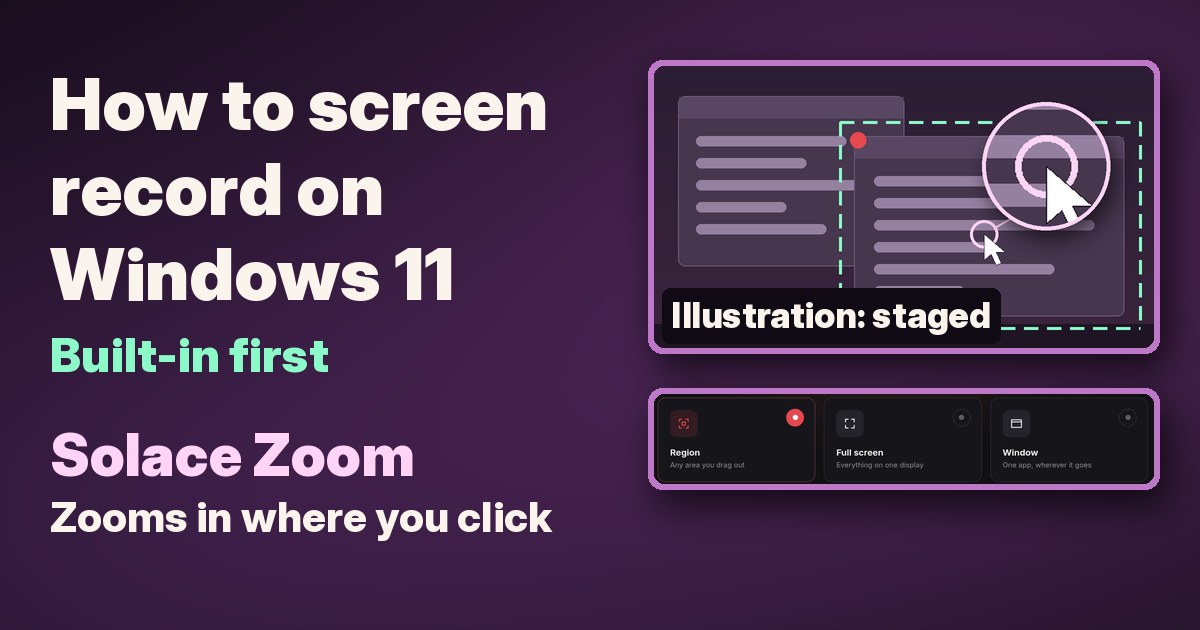
Windows 11 can record your screen without installing anything. Snipping Tool records any part of the screen, and Xbox Game Bar records the game or app you're using. Here's how, built-in Windows steps first.
1. Record part or all of your screen with Snipping Tool
- Open Snipping Tool, select the Record button, then select New. Or press Windows logo key + Shift + R.
- Drag to select the area of the screen you want to record.
- Select Start.
- When you're done, select Stop.
You can save the recording as it is, or select Edit in Clipchamp to edit it. From there you can also add captions or audio.
2. Record a game or app with Xbox Game Bar
- Press Windows logo key + I to open Settings, search for xbox, and turn on Enable Xbox Game Bar.
- Go to the game or app you want to record.
- Press Windows logo key + Alt + R to start recording.
- Press Windows logo key + Alt + M to turn your microphone on or off while you record.
- Press Windows logo key + Alt + R again to stop.
Your recording is saved as an MP4 file in Videos > Captures. The file name has the game or app's name and the date and time.
3. Include your PC's sound in Game Bar recordings
If you want every sound from your PC in the recording, not just the game:
- Press Windows logo key + G to open the Game Bar controls.
- Select Settings, then Capturing.
- Choose All for the audio to record.
- Press Windows logo key + G again to close Game Bar.
Want zooms on every click, with no video editing?
The built-in tools record what's on screen. For a demo, tutorial or bug report, though, the cursor can be tiny and the part that matters may sit in a corner, so viewers miss it unless you add zooms in a video editor afterwards.
Disclosure: we (SolaceSoftware) make and sell Solace Zoom.
That's what our Solace Zoom is for. It's optional: the steps above are all you need to record your screen.
- Zooms in where you click, with smooth cursor movement. Press Ctrl+Shift+Z to zoom by hand.
- Record a region, a window or the full screen at 24, 30 or 60 fps, with your microphone and system sound.
- A simple editor: trim, cut, speed up idle stretches, and add labels, arrows, highlights, frames and backgrounds.
- Export an MP4 or a GIF. Captions are made on your PC.
- No account, telemetry or watermark. Recordings and projects stay on your PC.
Limits: you need 64-bit Windows 10 or Windows 11 with the Microsoft Edge WebView2 Runtime, which is built into Windows 11. It installs for your Windows user only, with no administrator rights needed. Captions need a one-time 57 MB download the first time you use them. The shop page lists the size and SHA-256 of the exact ZIP you download. The app isn't code-signed yet, so on first launch Windows may show "Windows protected your PC". Click More info, then Run anyway.
Try it free for 14 days, with every feature. After that it's $19.99 once. No subscription and no automatic renewal.
Try our Solace Zoom free for 14 days
Questions before you buy: solacesoftware@smilingface.cloud
Quick answer
- Any part of the screen: Snipping Tool, or press Windows logo key + Shift + R, drag an area, then Start and Stop.
- A game or app: turn on Xbox Game Bar, then press Windows logo key + Alt + R to start and stop. Files go to Videos > Captures.
- Microphone in Game Bar: Windows logo key + Alt + M while recording.
- All PC sound in Game Bar: Windows logo key + G > Settings > Capturing > All.
- For zooms on every click, an editor and GIF export: our Solace Zoom, free for 14 days, then $19.99 once.
Not sure which app you need? Answer one question
Questions: solacesoftware@smilingface.cloud.