GUIDE
C: drive full? Find duplicate photos first
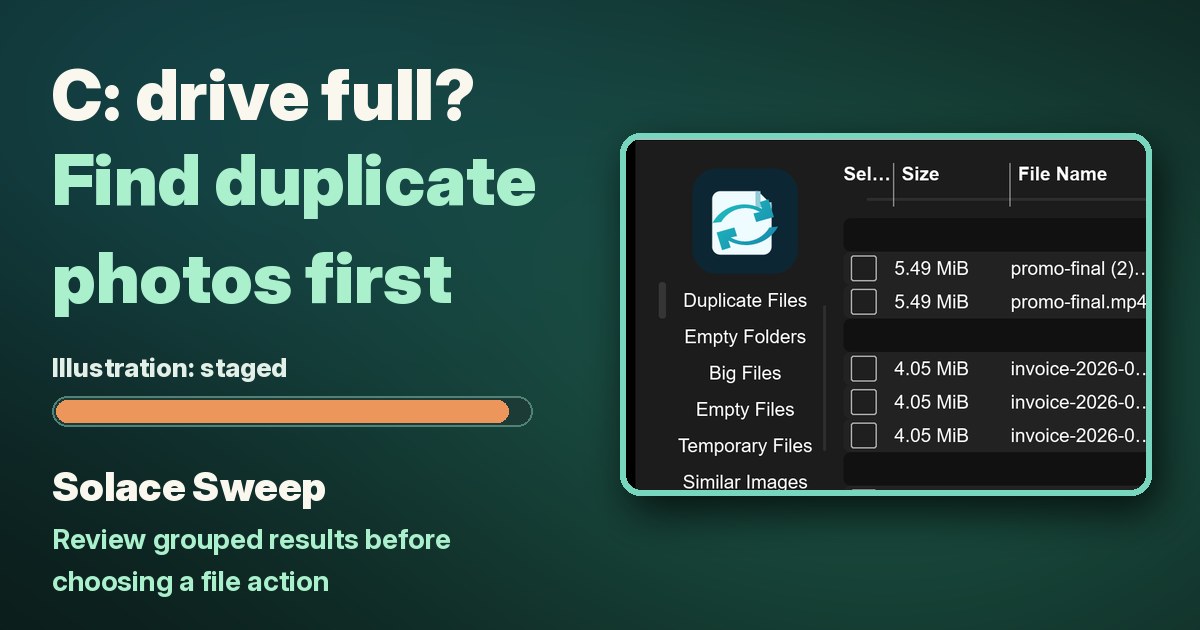
When Windows says your C: drive is nearly full, the quick wins are built in and free: clear what Windows itself marks as junk, then look at your own files, starting with photos. Photos are a common place for duplicates: the same picture imported twice, or saved again at a smaller size. Here's the order that works, built-in Windows steps first.
1. Check how full the drive is
Go to Start > Settings > System > Storage. The capacity bar turns red when Windows considers the drive low on space.
2. Use Cleanup recommendations
- On the same page, select Cleanup recommendations.
- Go through each category: Temporary files, Large or unused files, Files synced to the cloud and Unused apps. Windows suggests items and shows how much space you'll save.
- Tick what you don't need, then select Clean up for each section.
If you upgraded Windows in the last 10 days, your previous version of Windows can show up here too. Deleting it frees space, but you can't go back to the old version afterwards.
3. Turn on Storage Sense
Go to Start > Settings > System > Storage and set Storage Sense to On. With the default settings it runs when the drive is low on space and clears temporary files, and it deletes items that have sat in the Recycle Bin for a while. Select Storage Sense to choose how often it runs (under Run Storage Sense) and how long files stay in the Recycle Bin. It only touches your Downloads folder and cloud files if you set it to. Storage Sense works on the system drive, which is usually C:.
4. Find the big files and photos yourself
Personal files often take more space than anything Windows can clean up.
- Open File Explorer from the taskbar.
- Under This PC, open Pictures. Videos, Music and Downloads are the other folders that usually hold the biggest files.
- Select View > Details, then right-click an empty spot and choose Sort by > Size. The largest files are now at the top.
- To spot obvious copies, sort by Name instead. Copies like "photo (1).jpg" end up next to the original.
- Delete what you don't need, or move photos you want to keep but rarely open to a USB drive or SD card.
5. Empty the Recycle Bin
Files you delete go to the Recycle Bin first and still use space there. Empty the Recycle Bin once you're sure you don't need them back, or let Storage Sense clear old items for you.
Want an easier way to find duplicates?
Sorting by name only catches copies with similar names. Windows doesn't include a tool that compares files to find true duplicates, so a copy with a different name, or the same photo saved at a smaller size, is easy to miss in a big Pictures folder.
Disclosure: we (SolaceSoftware) make and sell Solace Sweep.
That's the job our Solace Sweep is built for.
- Groups duplicate files in the folders you pick, such as Pictures or an old phone backup.
- A similar-images scan for near-copies. In our test it found 6 duplicate files in 5 groups, and the similar-images scan caught a resized copy.
- Also finds oversized files, empty items and temporary data, grouped for review.
- Nothing changes until you choose a file action. You review the grouped results first.
- Reference paths protect the copy you want to keep, for example your main photo library.
- Runs on your own Windows PC, without uploading your files.
Limits: scan results can be incomplete or contain false matches, so look at each group before you act, and keep a backup of photos you care about. Some file actions can't be undone, so prefer sending files to the Recycle Bin, and keep scans out of system and program folders. Some optional video and image features may need additional codecs. You need Windows 10 or newer, 64-bit. It's a portable app, and the shop page lists the size and SHA-256 of the exact ZIP you download. The app isn't code-signed yet, so on first launch Windows may show "Windows protected your PC". Click More info, then Run anyway.
$36.75 once. No subscription and no automatic renewal. There's no trial, so read the limits above before you buy.
See our Solace Sweep: $36.75 once
Questions before you buy: solacesoftware@smilingface.cloud
Quick answer
- Free and built in: Settings > System > Storage > Cleanup recommendations, then turn on Storage Sense.
- Find big photo folders: File Explorer > Pictures > View > Details, then Sort by > Size (or by Name to spot obvious copies).
- Don't forget: empty the Recycle Bin after you delete.
- For true duplicates and resized copies across many folders: our Solace Sweep, $36.75 once.
Not sure which app you need? Answer one question
Questions: solacesoftware@smilingface.cloud.