GUIDE
Windows 11 gaming tweaks that are worth doing
Most "gaming tweak" lists online pile on registry hacks and services to disable. Many of those do nothing on a current PC, and some break things. The settings below are all built into Windows 11, free and easy to undo. Results depend on your games and hardware, so change one thing at a time and keep what helps.
1. Make sure Game Mode is on
Settings > Gaming > Game Mode. It's on by default, but check it. Game Mode tells Windows to favour the game you're playing, for example by holding back Windows Update installs and restart notifications while you play.
2. Check the graphics settings
Go to Settings > System > Display > Graphics.
- Pick the GPU per game (laptops with two GPUs). Under the app list, find your game (or click Add desktop app and browse to its .exe), open Options and choose High performance. This makes sure the game runs on the stronger GPU.
- Change default graphics settings has two switches worth knowing:
- Hardware-accelerated GPU scheduling. It only appears if your GPU and driver support it, and it needs a restart. Some PCs feel smoother with it on and some see no difference, so try it both ways.
- Optimizations for windowed games. This helps games that run in a window or borderless window. Turn it on if you play that way.
- Update your graphics driver from your GPU maker's own site or app. New drivers often fix problems in recent games.
3. Use your monitor's full refresh rate
A surprising number of high-refresh monitors run at 60 Hz because nobody changed it. Go to Settings > System > Display > Advanced display > Choose a refresh rate and pick the highest one listed. Then check the game's own video settings, because many games have their own refresh rate or frame limit option.
4. Turn off "Enhance pointer precision" (mouse acceleration)
With it on, the pointer moves further when you move the mouse faster, which makes aim harder to learn. Go to Settings > Bluetooth & devices > Mouse > Additional mouse settings > Pointer Options and untick Enhance pointer precision. Many games use raw input and ignore this setting anyway, but it keeps the desktop and menus consistent with your in-game aim.
5. Stop notifications and Sticky Keys from interrupting
- Settings > System > Notifications > Do not disturb. Under Turn on do not disturb automatically, tick When playing a game.
- Settings > Accessibility > Keyboard > Sticky keys: turn off Keyboard shortcut for Sticky keys, so pressing Shift five times mid-game doesn't pop up a dialog.
6. Trim startup apps and pick a power mode
- Settings > Apps > Startup: switch off apps you don't need running the moment Windows starts. Fewer things run in the background while you play.
- Settings > System > Power & battery > Power mode: on a plugged-in laptop or a desktop, Best performance keeps Windows from holding the hardware back to save power.
7. Use what's already in Xbox Game Bar
Press Win+G in a game for Xbox Game Bar: it has a performance widget, audio mixer and capture. Win+Alt+R starts or stops a recording. If you never use it, you can turn its shortcut off under Settings > Gaming > Xbox Game Bar.
What Windows doesn't do
Built-in settings stop at the system. Windows has no setting to:
- force borderless windowed on a game that only offers a bordered window,
- draw a custom crosshair over a game,
- change all of your cursors to an animated set and switch them back in one click,
- make a quiet or laptop keyboard sound mechanical,
- or set an animated wallpaper.
That's what the apps below are for.
The setup apps: Solace Gamer Pack
Disclosure: the Solace Gamer Pack is sold by SolaceSoftware, the shop that publishes this guide.
Five of these apps have a free 14-day trial, so you can try them first. All seven Solace apps for games and streams are $29.00 once (they'd cost $54.21 separately):
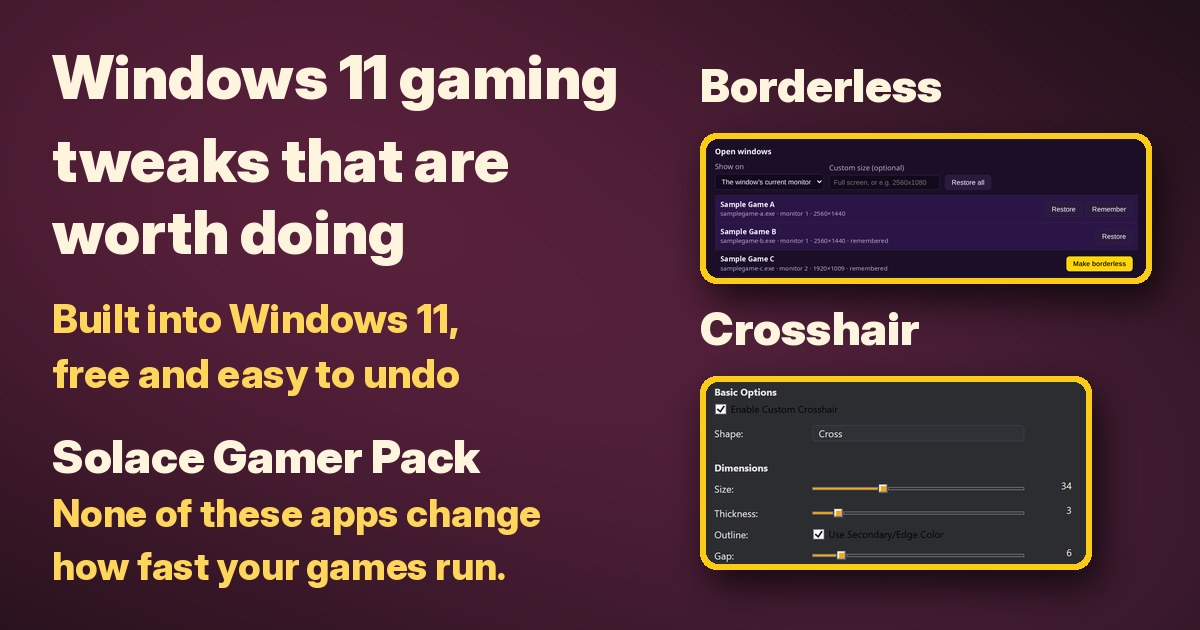
- Borderless: play any windowed game in borderless full screen
- Crosshair: put a custom crosshair in the middle of your screen
- Cursors: six animated cursor packs, now including Spooky
- Clack: mechanical keyboard sounds on any keyboard
- Emotes: animated emotes and stickers from a selfie, a pet photo or a drawing
- Pixel: draw pixel art, sprites, tiles and frame-by-frame animations
- Wallpaper: live animated wallpapers
Honest limits: Borderless and Crosshair work with games in windowed or borderless-windowed mode. Exclusive full screen isn't changed and can hide the crosshair. Anti-cheat in some online games may flag overlays, so check each game's rules before you use Crosshair. None of these apps change how fast your games run.
Try before you buy: Cursors, Borderless, Crosshair, Pixel and Wallpaper each have a free 14-day trial on their own page. The pack itself has no trial. You pay once, with no subscription and no automatic renewal, and your receipt page lists every app's download with its file name, size and SHA-256. The apps aren't code-signed yet, so the first time you open each one Windows may show "Windows protected your PC". Click More info, then Run anyway. Requires Windows 10 or 11, 64-bit.
See the Solace Gamer Pack: 7 apps for $29 once
Questions before you buy: solacesoftware@smilingface.cloud
Quick answer
- Free and worth doing: Game Mode on, high-performance GPU per game, full refresh rate, Enhance pointer precision off, Do not disturb while gaming, fewer startup apps.
- Try both ways: Hardware-accelerated GPU scheduling.
- Beyond what Windows offers (borderless, crosshair, cursors, key sounds, live wallpaper): the Solace Gamer Pack, $29 once, with trials on five of the apps.
Not sure which app you need? Answer one question
Questions: solacesoftware@smilingface.cloud.