GUIDE
How to get a dock on Windows 11 (built-in taskbar first)
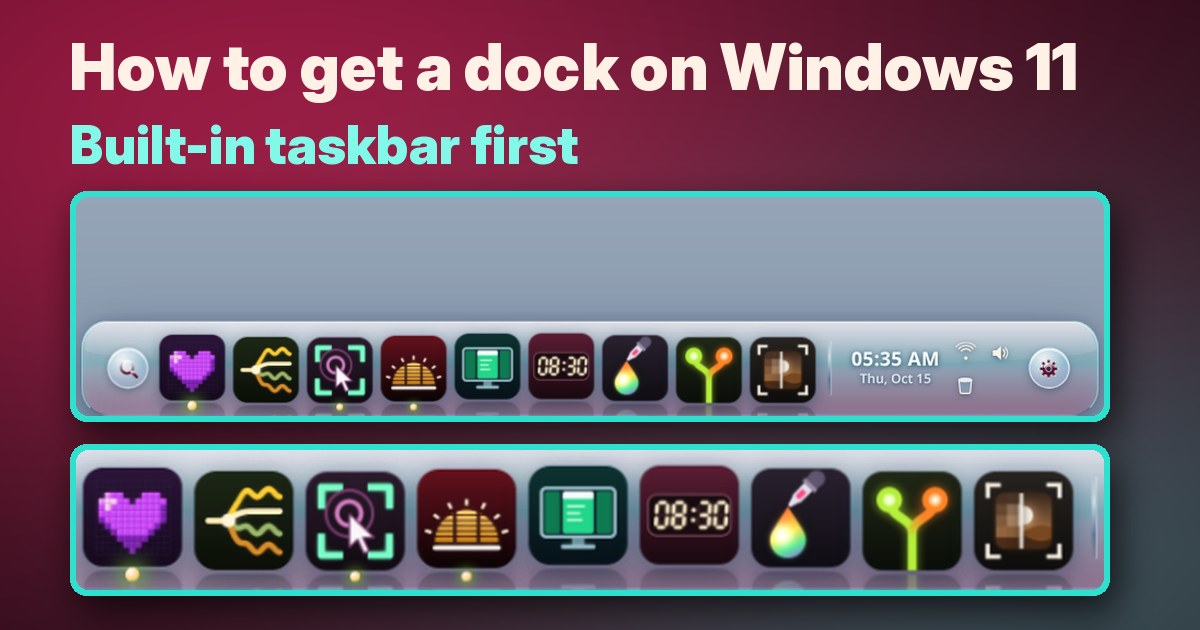
Windows 11 already has a bar for your apps at the bottom of the screen: the taskbar. You can change where its icons sit, which apps stay on it and when it shows, without installing anything. Here's how, built-in Windows settings first.
1. Center or left-align the taskbar icons
- Right-click the taskbar and select Taskbar settings.
- Expand Taskbar behaviors.
- Next to Taskbar alignment, choose center or left.
The taskbar is centered by default in Windows 11. You can align the icons to the center or to the left. There's no setting to move the taskbar to the top or to a side of the screen; it stays at the bottom.
2. Pin the apps you use most
- In the search box on the taskbar, type the app's name. Right-click it, then select Pin to taskbar.
- If the app is already open, right-click its taskbar icon, then select Pin to taskbar.
- To remove one, right-click the pinned icon and select Unpin from taskbar.
- To change the order, drag an icon to a new spot.
Running apps show a line under their icon, and the app you're using is highlighted in your Windows accent color. Right-click an app's icon to open its jump list, a shortcut to recent files and common tasks.
3. Hide the taskbar until you need it
- Right-click the taskbar and select Taskbar settings.
- Expand Taskbar behaviors.
- Check Automatically hide the taskbar.
To bring the taskbar back, move your mouse to the bottom edge of the screen, or touch it.
4. Clear out the clutter
- Right-click the taskbar and select Taskbar settings.
- Under Taskbar items, use the Search dropdown to show a search box, an icon with a label, just an icon, or nothing.
- Switch Task view and Widgets on or off.
- Under Other system tray icons, choose which icons can appear in the system tray.
5. Using more than one monitor?
Under Taskbar behaviors in Taskbar settings, check or uncheck Show my taskbar on all displays.
Want icons that grow as your cursor passes?
The settings above change where your icons sit and when the taskbar shows. They don't include icons that grow as your cursor passes. If you'd like a dock-style launcher with that effect, you can add one.
Disclosure: we (SolaceSoftware) make and sell Solace Dock.
That's what our Solace Dock is for. It's optional: the steps above are all you need to tidy up your taskbar.
- Icons grow as your cursor passes, smoothly.
- Hover a running app to see live previews of its windows. A dot under an icon shows it's running.
- Drag apps, files and folders onto the dock to pin them.
- A built-in clock and system status, plus optional widgets: calendar, now playing and system load.
- Pick your theme, icon size, magnification and monitor.
- No account and no telemetry, and no administrator rights needed.
Limits: you need 64-bit Windows 10 or Windows 11 with the Microsoft Edge WebView2 Runtime, which is built into Windows 11. It installs for your Windows user only, with no administrator rights needed, and the download is about 4 MB. The shop page lists the size and SHA-256 of the exact ZIP you download. It doesn't start with Windows until you turn that on, and you can remove it in Settings > Apps > Solace Dock. The app isn't code-signed yet, so on first launch Windows may show "Windows protected your PC". Click More info, then Run anyway.
Try it free for 14 days, with every feature. After that it's $4.59 once. No subscription and no automatic renewal.
Try our Solace Dock free for 14 days
Questions before you buy: solacesoftware@smilingface.cloud
Quick answer
- Icon position: right-click the taskbar > Taskbar settings > Taskbar behaviors > Taskbar alignment: center or left. The taskbar stays at the bottom.
- Keep apps handy: right-click an app > Pin to taskbar, then drag to reorder.
- Hide it: Taskbar behaviors > Automatically hide the taskbar, then move to the bottom edge to show it.
- Less clutter: Taskbar items and Other system tray icons in Taskbar settings.
- Icons that grow under your cursor, with live window previews: our Solace Dock, free for 14 days, then $4.59 once.
Not sure which app you need? Answer one question
Questions: solacesoftware@smilingface.cloud.